Settings & Configuration
Manage your profile, password, notification preferences, and view your subscription status as a manager.
Last updated: July 2026
Overview
The Settings page allows you to manage your personal profile and preferences within AdlDesk. As a manager, you have access to your own account settings and notification configuration. Firm-wide settings such as adding users, changing the firm name, or managing billing are handled by the Firm Admin role.
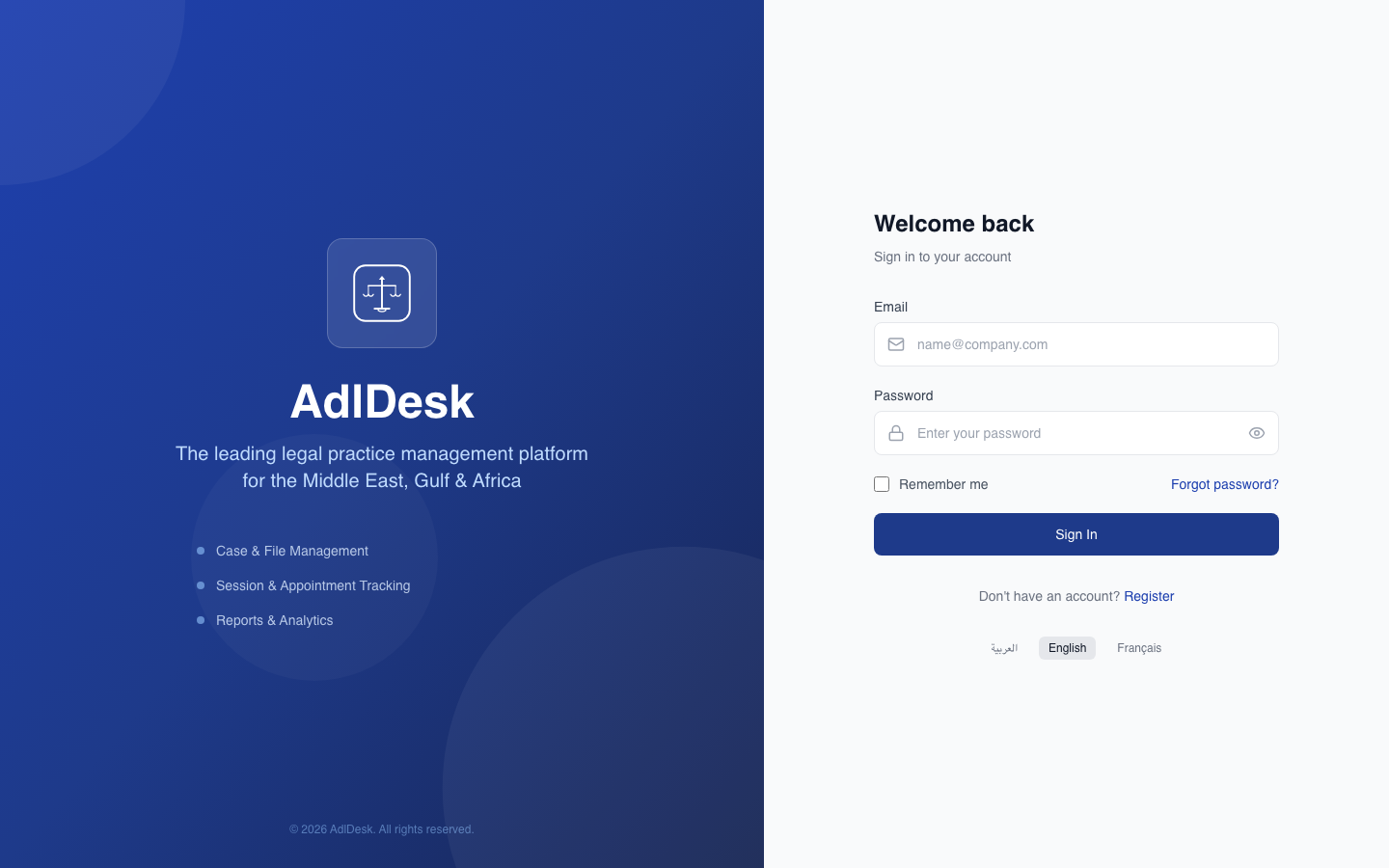
Accessing Settings
Click your profile avatar in the top-right corner and select Settings from the dropdown, or navigate directly via the sidebar if available. The Settings page opens with the Profile tab active by default.
Profile Tab
The Profile tab allows you to update your personal information:
- Full Name — Update your display name as it appears to colleagues in chat, case records, and system logs.
- Phone Number — Your work phone number, visible to team members and used for account recovery.
- Language Preference — Switch the interface language between Arabic, English, and French. The change takes effect immediately after saving without requiring a page reload.
- Profile Photo — Upload a headshot by clicking the avatar circle. Recommended size: 200×200 pixels, JPG or PNG format.
After making changes, click Save Profile to apply them.
Password Change
To update your account password:
- Select the Security tab within Settings.
- Enter your Current Password in the first field.
- Enter your New Password — minimum 8 characters, must include at least one uppercase letter and one number.
- Confirm the new password in the Confirm Password field.
- Click Update Password. You will remain logged in but all other active sessions will be terminated for security.
Notification Settings
The Notifications tab gives you granular control over how AdlDesk alerts you:
- Email Alerts — Toggle individual email notifications: new case assignments, overdue task reminders, upcoming hearing reminders (24 hours before), and team activity summaries (daily digest).
- Push Notifications — Browser push notifications for real-time alerts. Requires granting browser permission the first time you enable this. Covers: new chat messages, @mentions, and urgent deadline reminders.
- Quiet Hours — Set a time range (e.g., 10:00 PM to 7:00 AM) during which non-urgent notifications are suppressed. Emergency alerts (such as a hearing scheduled for tomorrow) always go through.
Subscription Status
The Subscription tab shows your firm's current plan, billing cycle, and feature entitlements. As a manager, this view is read-only — you can see what plan the firm is on and which features are included, but you cannot modify billing details or upgrade the plan. Contact your Firm Admin to make subscription changes.
Was this article helpful?