🚀
Getting Started
First login, dashboard overview, and initial setup steps for your law firm on AdlDesk.
Last updated: July 2026
Logging In
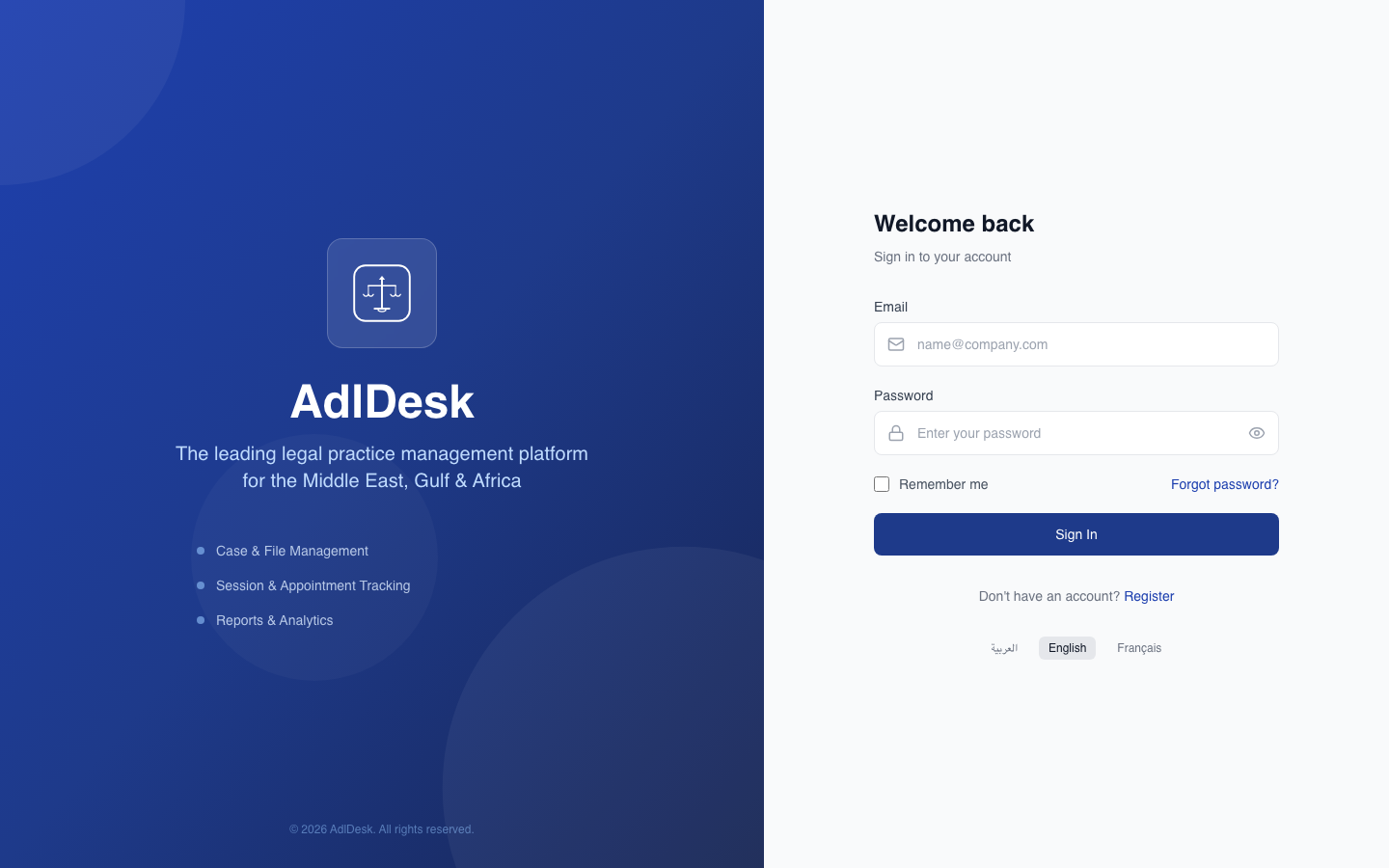
Open your browser and navigate to app.adldesk.com. Enter the email address and password provided by your platform administrator, then click Sign In. On first login you will be prompted to change your password if a temporary one was issued.
Dashboard Overview
After login you land on the main dashboard. At the top you will see four KPI cards summarising your firm at a glance:
- Active Cases — total number of open and in-progress matters.
- Upcoming Hearings (7 days) — hearings scheduled within the next seven days across all cases.
- Outstanding Amount — total unpaid invoice balances owed by clients.
- Total Clients — all active client records in your firm.
Each card is clickable and takes you directly to the relevant section for more detail.
Quick Actions
Below the KPI cards you will find three quick-action buttons to speed up your most common tasks:
- New Case — opens the case creation form without navigating away from the dashboard.
- New Client — opens the client creation form with fields for individual or corporate clients.
- New Invoice — launches the invoice builder pre-linked to an existing case or client.
Initial Setup Checklist
Before inviting your team, complete the four-step setup checklist in order:
- Profile — Go to Settings → Profile and fill in your name (Arabic and English), phone number, and upload a profile photo.
- Branches — Go to Settings → Branches and create at least one branch representing your office location.
- Users — Go to Settings → Users and add your team members, assigning each a role and branch.
- Roles — Go to Settings → Roles to review default permissions or create custom roles tailored to your firm structure.
Tip: Complete the checklist top to bottom — branches must exist before you can assign users to them, and roles must exist before users can be assigned a role.
Important: The platform administrator account has unrestricted access. Keep its credentials secure and do not share it with regular team members.
Was this article helpful?